
Checking System Requirements: Your 2026 Travel Guide
You've got your boarding pass saved, your rental confirmation bookmarked, and the driving translation or permit PDF on your phone. Then the desk agent asks you to open it, the file won't load, the QR code won't scan, or the page sits there spinning while a line forms behind you. That's the moment checking system requirements stops being a technical chore and becomes the difference between moving on and losing time you don't have.
Travel documents fail in ways ordinary apps don't. A file can open on your home Wi-Fi and still break on hotel internet, a browser can display the PDF but refuse the verification portal, and a phone can store the document but lack the storage, camera permission, or OS support needed to present it cleanly at a counter. Microsoft's Windows 11 requirements show how far compatibility checks now reach, down to UEFI Secure Boot and TPM 2.0 in addition to CPU, memory, and storage thresholds, because vendors know that a device can look usable and still be unsupported in practice (Microsoft Windows 11 specifications).
Table of Contents
- Why System Checks Prevent Travel Document Failures
- Verifying Your Device and Operating System Compatibility
- Browser and PDF Reader Configuration Checks
- Security Settings and Network Access Requirements
- Testing QR Verification Before You Travel
- Your Pre-Travel System Verification Checklist
Why System Checks Prevent Travel Document Failures
A rental desk is a bad place to find a compatibility gap. The agent will not wait while you dig through settings, and a border officer will not pause a queue because your browser needs an update. The issue is not just whether the document exists, it is whether your device, browser, reader, and network can all display and verify it when you need it.
The failures that show up at the worst time
The breakpoints are usually ordinary, which is why they get missed. An outdated browser can block the verification page, a restrictive PDF viewer can hide the code you need, and a security setting can stop camera access right when you need to scan a QR code. In practice, many travelers only discover these limits at the counter, when the file they expected to open cleanly starts acting differently on a borrowed network or in a locked-down browser.
That is why a quick check before departure matters. If the document only works on one device, or only when the connection is ideal, it is not dependable for travel. It has a hidden dependency, and hidden dependencies are what cause the worst delays.
Practical rule: if you have not opened the exact file, on the exact device, using the exact browser or reader you will carry, you have not really tested it.
Why travel documents are stricter than normal apps
Digital travel documents often depend on more than display permissions. Some need a live verification portal, some rely on QR validation, and some are sensitive to browser privacy controls or offline access limits. Microsoft also notes that some Windows 11 editions require internet access and a Microsoft account during setup, which is a useful reminder that modern software increasingly treats identity, connectivity, and device state as part of the requirement itself.
That is exactly why travelers get surprised. They assume a PDF is a PDF, or a web page is a web page, but rental desks and checkpoint workflows usually assume a much narrower setup than the average consumer device provides. If you check compatibility at home, you can fix the problem without pressure. If you wait until the counter, the agent just sees a delay.
The right mindset is simple. Do not ask whether the file should work. Ask whether it has been verified to work in the same conditions you will face abroad.
Verifying Your Device and Operating System Compatibility
Start with the device itself, because no browser or PDF app can rescue an operating system that is too old, too full, or too limited. The useful lesson from vendor compatibility pages is simple. Hardware and firmware limits show up before users expect them, especially when a travel document has to load quickly, open a camera, or store files for offline use. A device can look fine on paper and still fail under the pressure of a check-in counter or border workflow.
Check the exact device path you'll use in travel
On Windows, go to Settings > System > About for the basics, then open Task Manager with Ctrl + Shift + Esc or launch System Information with msinfo32 for deeper detail. If you need a vendor reference for what a supported setup should expose, compare your device against the official Windows 11 specifications. On macOS, open Apple menu > About This Mac, then use System Information if you need more than the summary. On iPhone or iPad, open Settings > General > About. On Android, open Settings > About Phone and confirm the model and OS version.
The main question is not whether the device turns on. It is whether it can render your travel pack without lag, keep enough local storage available for offline access, and still run the camera or browser tools needed at a desk or checkpoint. Older devices often fail in quiet ways, like slow multi-language rendering, a browser that opens the file but misses embedded verification elements, or a camera that struggles to focus on a code under poor lighting.
Practical rule: if your travel document has a QR check, treat camera access, browser support, and OS version as one combined requirement, not three separate problems.
Verify updates and backup options before you leave
Check pending operating system updates while you are still at home. Updates can fix document rendering issues, but they can also change browser behavior or reset permissions, so you need time to test after installing them. If you are relying on one aging phone or one tablet with limited storage, carry a backup device for critical travel documents when you can.
The point is not to chase the newest version for its own sake. It is to avoid the hidden compatibility gaps that only show up when a desk agent asks for a file that opens instantly, a code that scans cleanly, and a screen that does not freeze mid-check. A device that technically runs the app may still fail the moment a verification step needs a modern browser, enough storage, or a live camera feed.
The fastest way to reduce risk is to test the exact chain you will use abroad. Open the document, confirm the OS version, confirm storage headroom, and make sure the camera and browser permissions survive a restart.
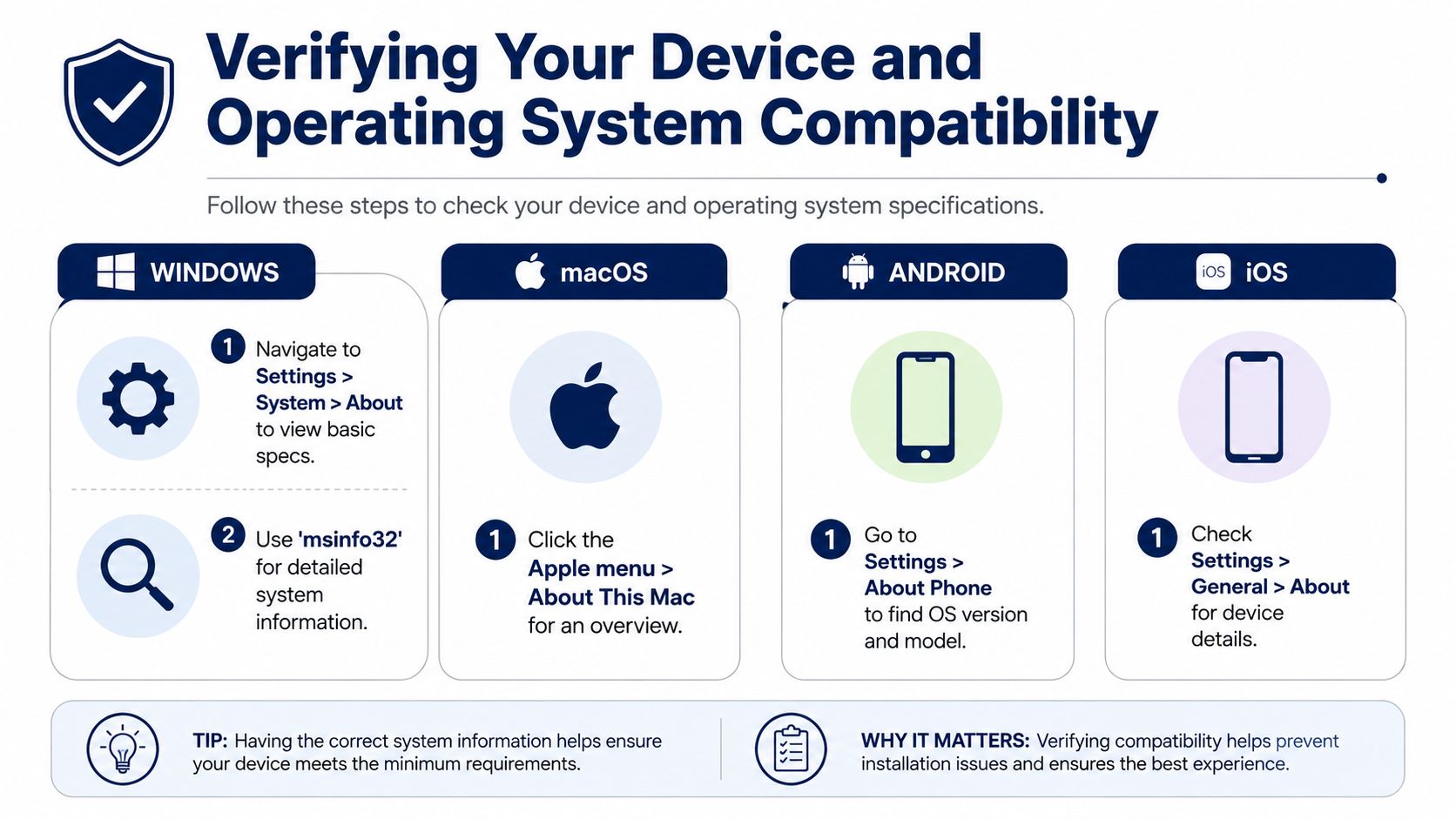
If you need a quick verification flow for a travel document workflow, the compatibility check page is the kind of checkpoint travelers should mirror before departure, because the value is in confirming the device behaves correctly, not just that it looks capable.
Browser and PDF Reader Configuration Checks
A document can be perfectly valid and still fail in your browser. That's because browser settings decide whether the page loads scripts, whether PDFs display in-page, whether pop-ups are allowed, and whether downloads land in a folder you can find at the counter. The practical fix is to test the browser you'll really use, not the one that just happens to be default today.
Confirm the browser behavior, not just the version
Chrome, Safari, Firefox, and Edge all handle PDFs a little differently. Open the browser settings and check that JavaScript isn't disabled, pop-ups aren't blocked for the verification portal, and downloads aren't set to a folder full of old files you'll confuse with the current one. If the site offers a verification page, load it once on home Wi-Fi and once on mobile data so you can see whether the browser changes behavior across networks.
PDF readers need the same treatment. Some readers open a file quickly but flatten form fields, hide embedded QR codes, or treat pages as images rather than interactive documents. If your travel document includes a visible code, scan it from the screen and make sure the page opens cleanly instead of forcing a secondary download or an error screen.
Test the reader with the actual use case
Open the document, zoom in, and move through every page. If it includes multi-page identity details, check that page navigation is smooth and that no text clips at the edge. If the file is meant to work offline, disconnect from the network and reopen it. That one test tells you whether you're depending on a hidden web call you won't have at a checkpoint.
The safest PDF setup is the one that requires the fewest surprises. If a reader asks permission twice, opens half the file in a browser and half in an app, or keeps redirecting downloads, it's not ready for travel use.
For mobile travelers, the practical risk is simple. Small screens make interface problems harder to spot, and a browser that looks fine on a desk can become awkward when you're trying to switch between tabs, camera, and document at speed. That's why the cleanest setup is often the most boring one, a stable browser, a reliable reader, and a file you've opened under the same conditions you'll face abroad.
Security Settings and Network Access Requirements
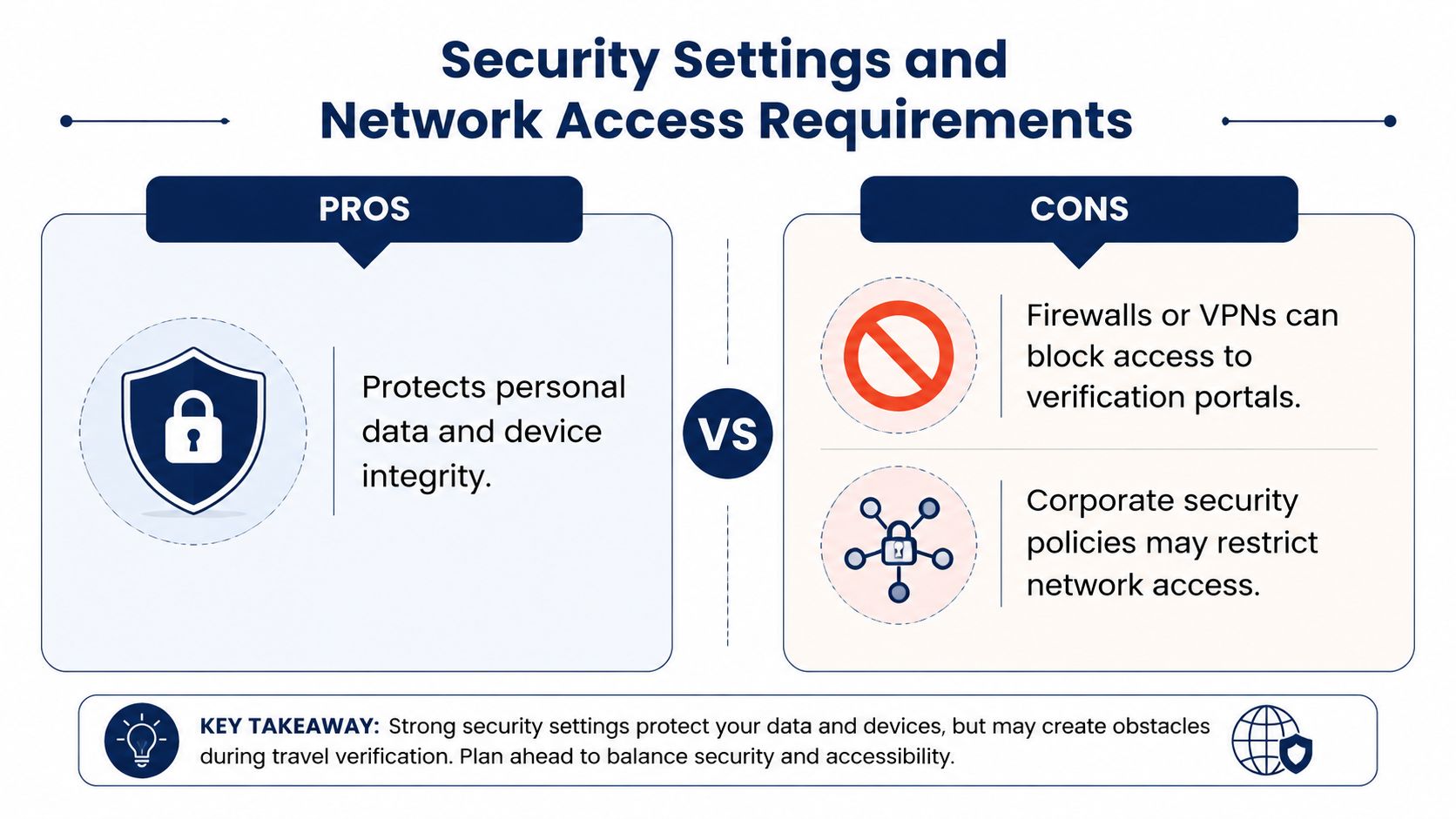
Security settings can protect access and still block the one verification page you need at a rental desk or border checkpoint. Firewalls, VPNs, privacy controls, managed devices, and hotel or airport networks all affect whether a portal loads and whether a QR flow completes. The goal is to keep the device protected without cutting off the exact page or permission path the document needs.
Where security settings create hidden friction
A strict browser security profile can block scripts or camera access. A VPN can make a verification site treat you like you are connecting from an unexpected region. Corporate devices often carry endpoint rules that reject unknown portals, and managed phones may need administrator approval before camera use or storage access works. The issue is not just whether the device is secure, it is whether the security layer still allows the travel workflow to finish.
Microsoft's guidance on devices that do not meet minimum requirements is a useful reminder that support status and operational reliability are not the same thing. A device can appear functional and still run into policy limits, update gaps, or support problems that show up at the worst time (Microsoft support on devices that don't meet minimum requirements).
That matters in travel because the environment shifts constantly. Hotel Wi-Fi can intercept or throttle pages. Airport networks may block unknown downloads. A corporate VPN that works at home can trigger a verification failure abroad. None of that means the document is broken, it means the route to it is.
Test the network path before departure
Check whether your device can reach the portal on home Wi-Fi, mobile data, and a VPN if you expect to use one. If a camera scan is part of the flow, confirm that the browser or app has camera permission and that privacy settings are not suppressing it. If you travel with a work device, ask whether a corporate policy blocks the verification domain before you depend on it.
The useful question is whether the current setup still allows the exact verification actions your trip requires. A locked-down environment can protect data well and still be a poor fit for travel document access.
If you use an eSIM to stay connected while moving between countries, network setup matters even more because the verification page has to work across changing connectivity conditions as well as changing locations. A practical overview of travel connectivity options is in the eSIM guidance. The point stays the same across setups. Do not assume the network that opens email will also open a document verifier.
Testing QR Verification Before You Travel
QR checks are where many travelers discover the problem too late. The code may be visible but unscannable, the link may load slowly, or the verification page may fail to display the exact details an agent expects to see. The best test is to run the whole scan flow before you pack, under the same device and lighting conditions you're likely to face at a desk or checkpoint.
Run the scan the way an official would
Use your phone's native camera first, not a third-party scanner. Open the document, hold it steady, and scan the QR code from a normal viewing distance. Confirm that the linked page opens directly and that the verification page renders cleanly on mobile. If the code is tiny, distorted, or partially damaged, repeat the scan in brighter light and at a slightly different angle.
Then test it with another phone. That second device matters because it tells you whether the code is broadly readable or only barely functional on your own screen. If the verification page loads on one device but not another, you've found a real risk before travel rather than at the desk.
Confirm the display and the fallback path
Once the page opens, check that the document details match what you expect and that the page doesn't hide critical fields behind awkward scrolling or a broken layout. If the scan fails, save a backup screenshot of the verification page and keep the document file itself available offline. That won't replace a proper verification flow when one is required, but it gives you a cleaner fallback than improvising under pressure.
The QR checker tool is the kind of utility worth mimicking before you leave, because it reinforces the right habit, verify the scan, verify the landing page, and verify the display before you're standing in front of someone who's waiting on you.
Your Pre-Travel System Verification Checklist
A short checklist is usually enough if it's the right checklist. Start with the items that can outright break access, then move to the ones that cause conditional failures, then finish with convenience tweaks that make the experience smoother. This is the fastest way to turn checking system requirements into a repeatable pre-trip routine.
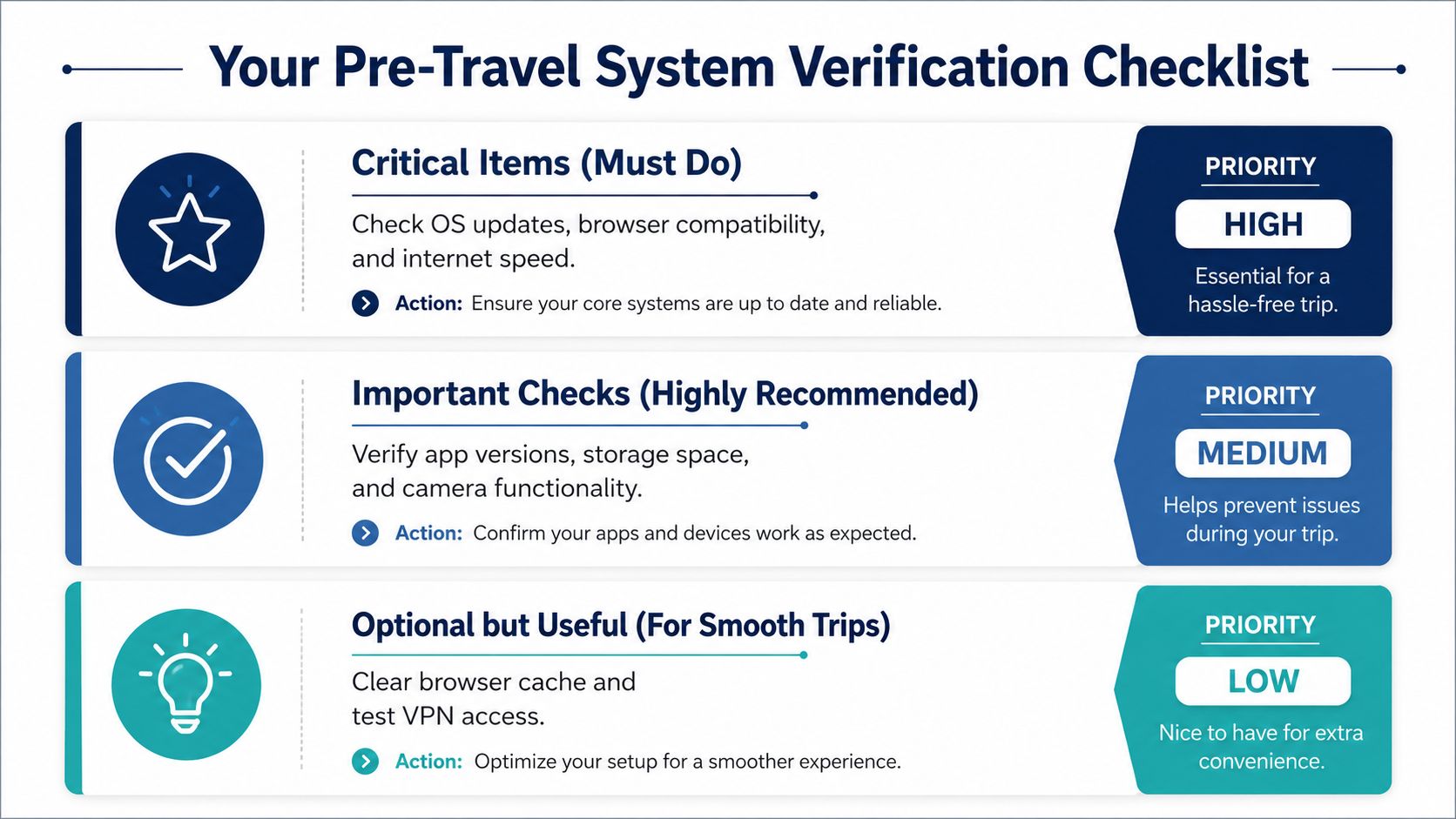
Critical Items. Confirm OS updates are current, browser and PDF access work, and the document opens offline if needed.
Important Checks. Verify storage space, camera permissions, and the exact device you'll carry.
Optional but Useful. Clear browser clutter, test VPN access, and save a backup copy in a second device or secure location.
Run the full check a few days before departure, then do a final opening test the day before you leave. If something breaks too close to travel, switch to the backup device, remove unnecessary network restrictions, or re-open the file in a simpler browser path instead of trying to troubleshoot every layer at once.
If you want a cleaner way to prepare for rental desks, border checks, and digital document handoffs, World Driving Permit offers a practical companion by making driving-license translations easier to present and verify abroad. Visit before your next trip so you can check compatibility at home, not under pressure at the counter.