
Checking Network Requirements: A 2026 Guide
You can have five bars of Wi‑Fi, a browser that loads instantly, and still get stuck when a document won't verify. That's the part many organizations overlook in the field. The connection is only the first gate, and the failure usually shows up deeper, in DNS resolution, API reachability, portal dependencies, or a local caching gap that nobody checked before the user needed the document.
I've seen this break at rental desks, border crossings, hotel lobbies, and office front desks. The device looks healthy, the network looks healthy, and the verification flow still dies after the spinner starts. That's why checking network requirements has to mean more than “can I browse the internet,” because a system can pass a simple connectivity test and still fail the exact service it needs to validate a QR code, load an API, or fetch a signed record.
Table of Contents
- Why Your Network Check Is Probably Missing the Real Problem
- The Layered Verification Process That Works
- Specific Requirements for QR Verification and API Access
- Building Effective Offline Fallbacks
- Hidden Dependencies That Break Working Networks
- Your Repeatable Network Verification Checklist
Why Your Network Check Is Probably Missing the Real Problem

A traveler at a rental counter doesn't care that the phone says “connected.” They care that the verifier responds before the clerk loses patience. In those moments, the failure is often not the wireless link itself, it's the path from the phone to the verification portal, the API behind it, or a background dependency that never gets exercised by a casual ping test.
That's why basic troubleshooting gives false confidence. A device can have internet access and still fail because one service resolves differently, one endpoint is blocked, or the app's trust chain breaks before the page fully loads. The practical lesson is simple, connectivity is not the same as service readiness.
Why the obvious test is usually wrong
A ping to a generic site doesn't prove that the verification portal, QR validation backend, or download host is reachable. The document system may need a very specific web service, and that service may depend on DNS, certificate validation, and policy checks that never show up in a simple “it loads a website” test.
The better habit is to separate the user-visible symptom from the network layer underneath it. If one traveler's phone fails while another device on the same network works, the issue is likely local. If every device on the same site fails, the problem is upstream or policy-based. If only a specific verification flow fails, the weak point is usually not raw internet access, but a hidden dependency behind the portal.
Practical rule: when a document won't verify, test the exact verification path first, not the general internet.
That mindset saves time because it stops you from blaming the wrong layer. It also changes how you collect evidence, since the right question isn't “does the network work,” it's “which part of the verification flow doesn't.”
The Layered Verification Process That Works
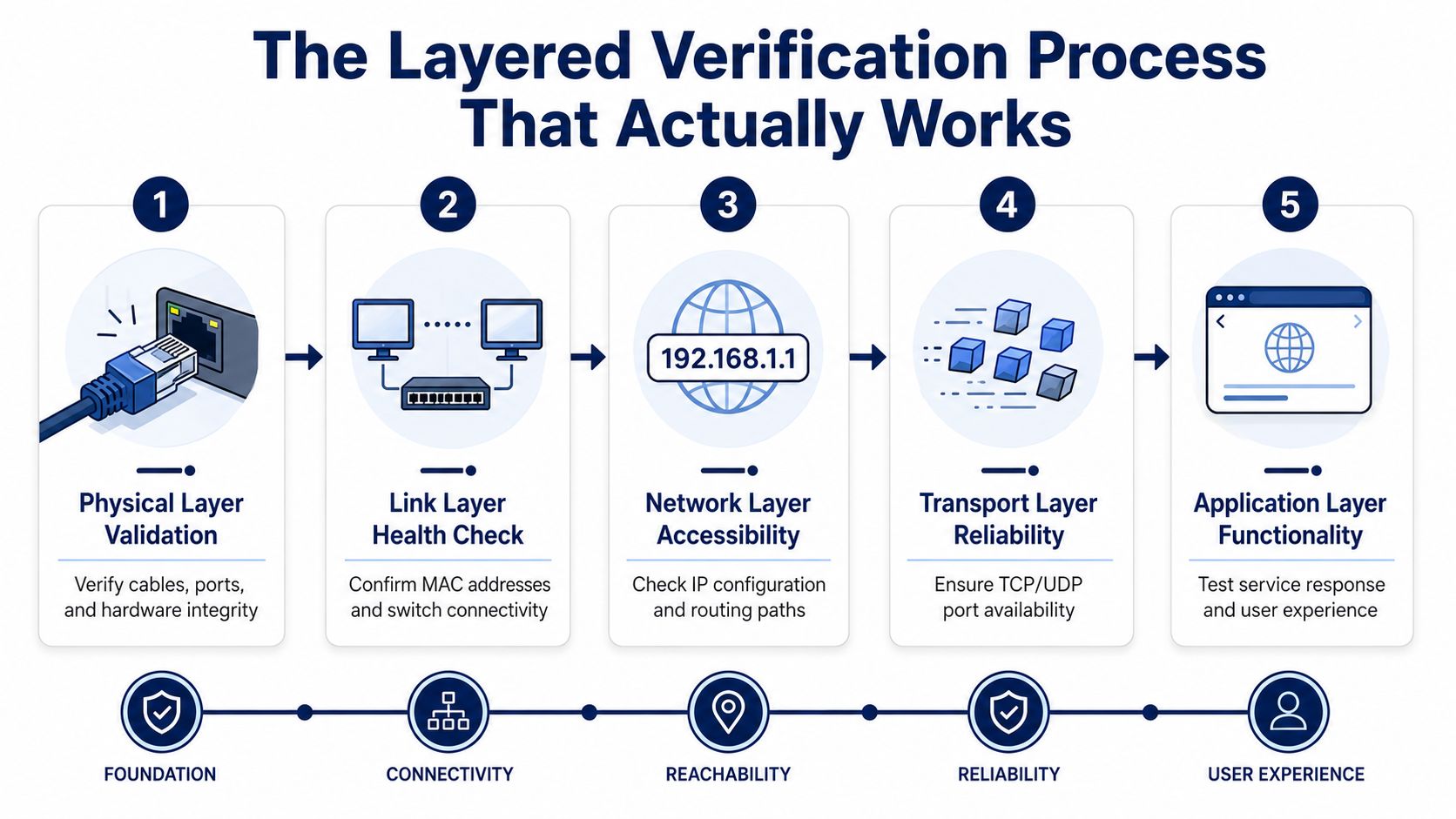
A clean network check starts at the bottom and moves upward, because document verification systems fail at different layers for different reasons. I use the same progression on real deployments when a portal loads but the QR flow hangs, or when one office can reach the app and another cannot. Structured assessments help here because they force you to record hardware, software, throughput, traffic patterns, errors, and bottlenecks before anyone starts changing settings, as described in the published workflow at Process Street's network assessment checklist.
Start with the physical and link layers
First, confirm the cable, port, wireless association, and device interface are up. A device can show a network icon and still have a bad cable, a flaky port, or a link that drops under load. If the physical side is unstable, everything above it becomes noise.
Then verify that the interface is talking to the switch or access point. Mismatched NIC speed, duplex issues, and broken hardware usually show up as intermittent failures, not a clean outage. When a user says “it worked yesterday,” do not assume the whole network changed. Check the local link first.
Separate addressing from reachability
The biggest mistake is lumping IP, DHCP, DNS, and routing into one problem. They fail differently. A device can have an address and still fail DNS. It can resolve names and still fail routing. It can ping one host and still miss the service that handles verification.
That is why experienced troubleshooters compare the failing device with an unaffected one on the same site or VLAN. If the unaffected device reaches the portal and the broken one does not, the issue is probably local. If both fail, the segment, policy, or upstream path is a stronger suspect.
Test the exact service, not just “the internet”
End-to-end verification means checking the specific application path that matters. For document flows, that includes the portal, the API, the QR validation endpoint, and any asset needed to render or download the proof. If a generic site works but the verifier does not, stop chasing the browser and test the exact verification path at the live verification page.
Use a known-good device when you can, because comparison tells you more than guessing ever will. If one laptop, one phone, or one site is healthy, the network is already pointing you toward the failure point.
Specific Requirements for QR Verification and API Access
A QR code can scan cleanly and still fail verification a second later. That is the part many network checks miss. The browser may open normal sites, while the verification request stalls because DNS does not resolve the right host, the API endpoint is unreachable, or the portal is being filtered by a policy rule that only affects this one path.
QR verification systems usually ride over HTTPS, so the visible symptom is often misleading. The page looks alive, but the call behind it never completes. A practical baseline is latency below 100 ms RTT for many general applications, with real-time services working best in the lower responsive range described in the monitoring guidance from MotaData's network performance metrics article.
Packet loss creates a different kind of failure. For real-time traffic, the guidance in the verified data puts acceptable loss at below 0.1%, because once loss rises, retries and retransmissions start stretching response times. In verification portals, that usually appears as a spinner that never ends, a page reset, or a request that comes back only halfway.
| Metric | Excellent | Acceptable | Problem Threshold | Impact on Verification |
|---|---|---|---|---|
| Latency | under 50 ms | 50 to 100 ms | 150+ ms | Slow QR validation, laggy portal response |
| Packet loss | below 0.1% | low and stable | above the threshold for real-time use | Timeouts, failed API calls, dropped sessions |
| Jitter | below 30 ms | stable enough for general use | above the threshold for voice or video | Unreliable interactive checks |
| Bandwidth utilization | below 60% | usable with headroom | sustained above 75% | Congestion during verification peaks |
The issue is usually not raw internet access. A network can browse ordinary sites and still fail a verification API because the request depends on a chain of DNS lookups, TLS checks, and backend calls to more than one service. Cloudflare's edge infrastructure, which World Driving Permit uses for live QR verification, helps with global reach, but the local network still has to let the request leave cleanly and return the response without policy interference.
What to validate before you trust the portal
Check the exact verification domain, not just a general website. Then confirm the API call returns, and make sure the QR code lands on the live page instead of a stale or cached one. If the browser resolves news sites but not the verification portal, the problem is usually a path, policy, or resolution issue, not the device itself.
A quick sanity check is to compare the failing connection with a known-good one on a different carrier, hotspot, or office network, or to run a comparison through the IDP checker. If the same QR verification works there, the fault is almost certainly in the local network or the policy stack around it.
A network that loads news sites and social apps can still fail a verification portal if the portal's dependency chain is blocked or degraded.
Building Effective Offline Fallbacks
Networks go down, and verification systems still need to leave the user with something usable. A good fallback path is deliberate, not accidental. It preserves the proof you can trust, the display layer the user can read, and the ability to sync later without forcing a hard stop.
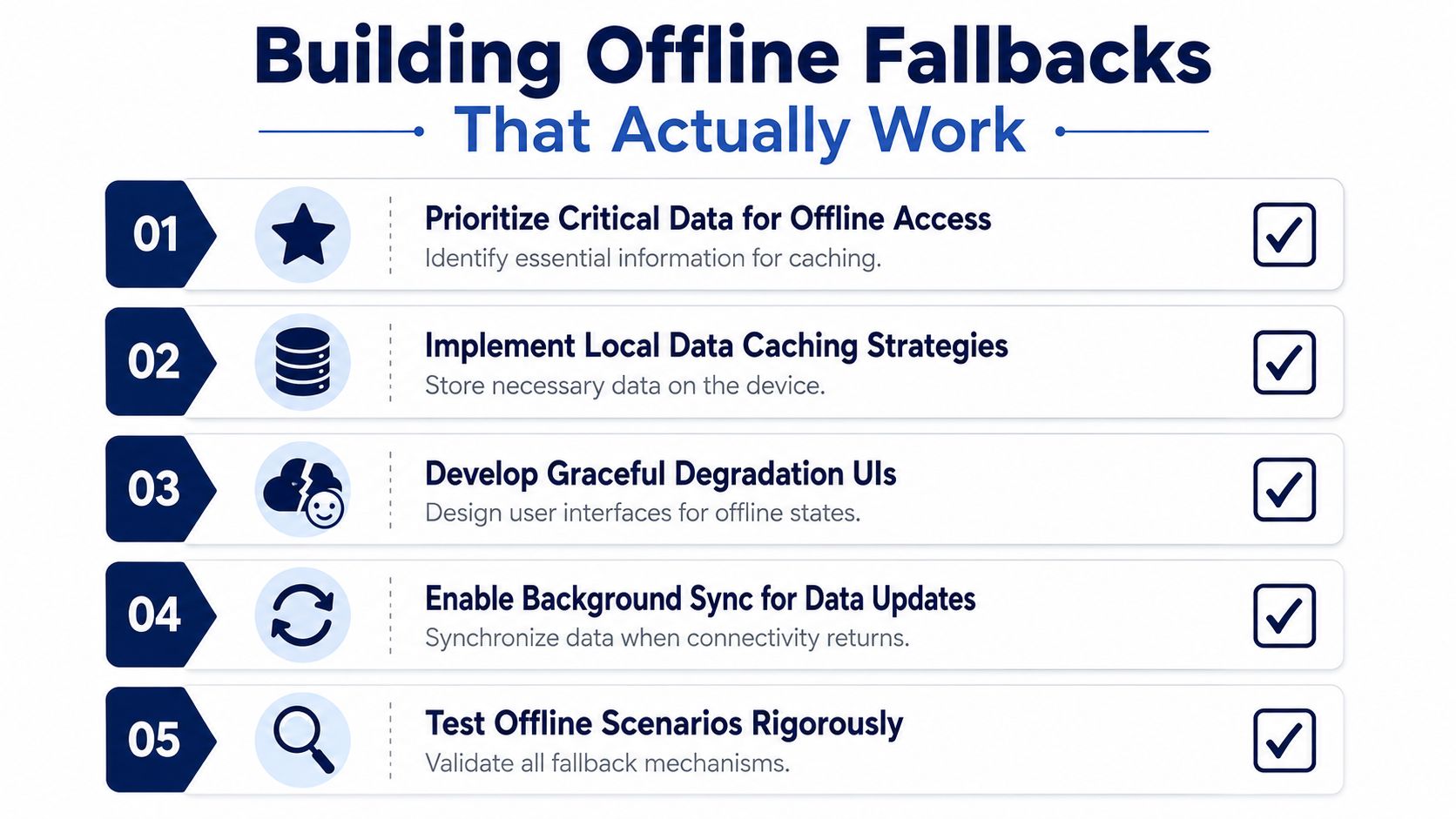
Progressive caching is the cleanest pattern. Store the document metadata, the most recent signed verification state, and the assets needed to render the local view before the user needs them. If the portal cannot refresh live, the app should still open cleanly and explain what is cached, what is stale, and what still needs a connection. That approach fits practical offline design for mobile and web apps, and it is far better than dropping users into a blank error screen.
Make offline mode explicit
Users need to know when they are looking at cached data. If the app hides that fact, support gets messy fast. Clear offline labeling, last-sync timestamps, and visible fallback status reduce confusion and help agents decide whether the cached proof is enough for a temporary check.
For travel use cases, store the core document data locally before the trip begins. The app should still open if roaming is weak, the airport Wi-Fi is captive, or the verification API is unreachable for a few minutes. For that airport step, travelers often depend on mobile data through travel eSIM connectivity when the captive network blocks normal access.
Keep the fallback narrow and trustworthy
Do not try to cache everything. Cache the parts that matter for a real-world inspection, then invalidate carefully when the online record changes. If freshness is not controlled, cached proofs become a liability instead of a convenience.
A useful offline strategy usually includes:
- Critical document data stored locally for fast access
- Signed verification state so the user can show authenticity context even without live access
- Graceful error messaging that explains whether the issue is connectivity or stale data
- Background sync that refreshes records when the network returns
- Rigorously tested offline flows so the fallback does not break under airport-grade conditions
A system that supports offline proof cleanly avoids the awkward “come back later” dead end. It does not replace live verification, but it keeps the user moving until the network returns.
Hidden Dependencies That Break Working Networks
A network can pass every obvious test and still fail a document workflow. The failure is often buried in a layer most guides skip, like a bad driver, a policy rule, or a service that looks optional until the app tries to use it. Microsoft community guidance on the Windows 10 “checking network requirements” problem points to an incompatible network driver as a known culprit, which matches what many admins see in the field when a machine behaves differently from every other device on the same segment.
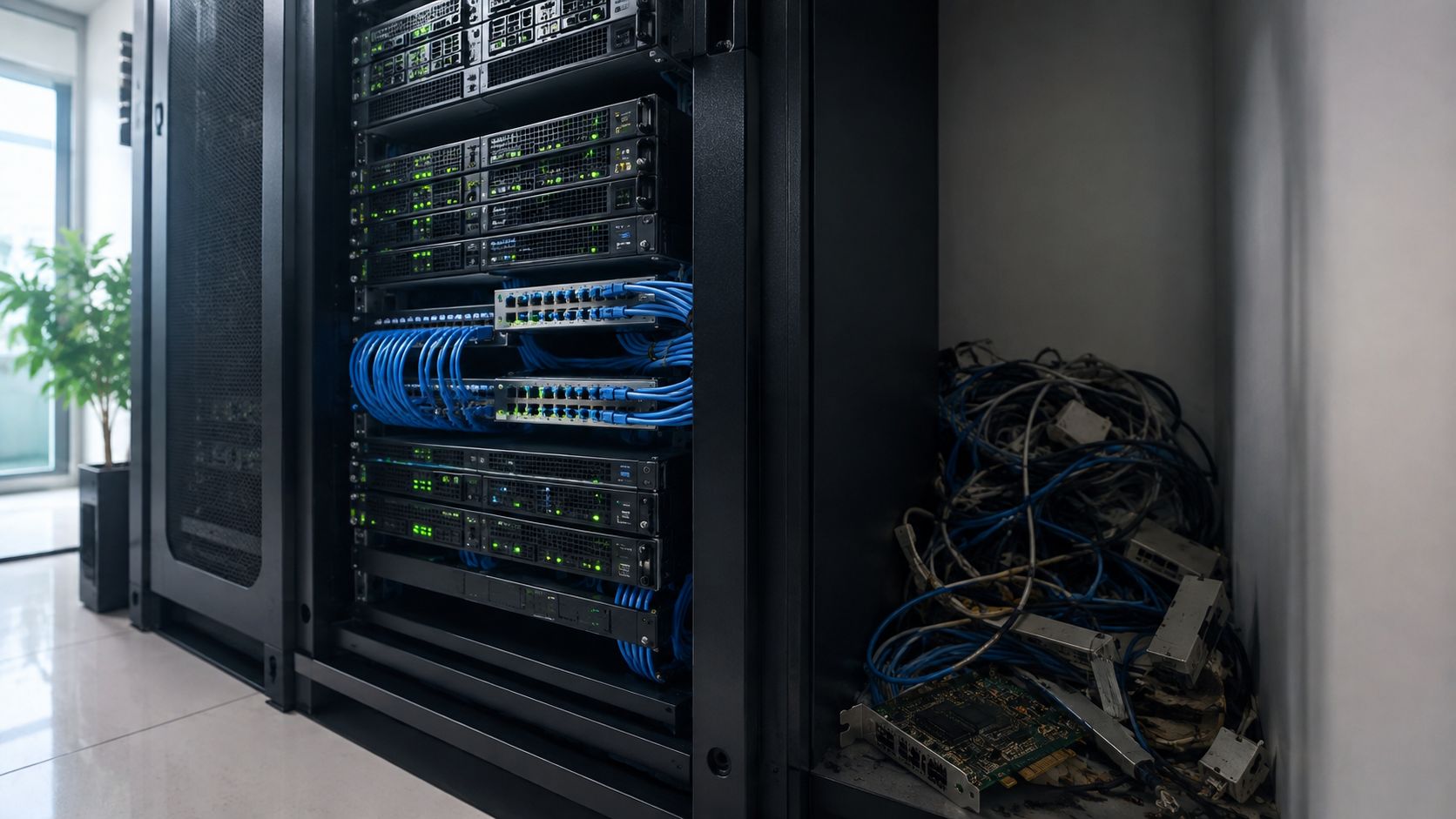
The same pattern shows up with installation and onboarding failures. Enterprise documentation describes cases where mismatched NIC speed and duplex, blocked ports, and multiple interfaces on the same subnet all cause problems that users mistake for simple internet outages. A device can also look healthy while DNS, DHCP, VPN, authentication, or encryption dependencies are missing, which is why verification should always include the higher-level services, not just the link itself.
What to check when the network looks fine
Start with the endpoint. If the driver is stale or incompatible, the rest of the stack can be perfectly healthy and the device still won't behave. Then check whether the interface, firewall, and routing choices match the actual service you're trying to reach.
After that, compare the live setup with source records such as CMDB or IPAM data. Configuration drift is a classic provisioning failure, and it's easy to miss because yesterday's settings may no longer match today's endpoint role. If a verification flow suddenly starts failing after an update, assume drift before you assume the internet is down.
Some failures only show up when traffic hits a policy edge. A browser can open ordinary sites while a verification portal, a QR endpoint, or a download host gets blocked by a rule that was meant to protect something else. That's why the right question is not “does browsing work,” it's “which dependency does this exact flow need.”
If you want to shorten your next support cycle, gather evidence before you change anything. Capture the failing device, the unaffected device, the exact service path, and the differences in driver, DNS, firewall, or interface state. That combination usually gets you to the root cause faster than endless restart attempts.
Your Repeatable Network Verification Checklist
Run the same sequence every time, before travel or deployment. Confirm the interface is up, validate the address and lease, test the exact verification portal, and compare the result with a known-good device on the same network. Then check whether the failure is local, segmented, or network-wide, because that tells you who needs to act next.
If the portal still fails, inspect the hidden dependencies first, driver, DNS, firewall policy, and any local caching or offline fallback state. If the issue only happens on one network, document the path, the time, and the failing step so an admin can isolate the block quickly. If the offline mode works but live verification doesn't, you've already learned something useful, the system is partially functional, but not fully reachable.
If you need a document that's readable, verifiable, and built for the practical mess of travel networks, World Driving Permit gives you a certified translation with QR verification and a practical delivery flow designed for those moments when connectivity isn't guaranteed. Check your network requirements before you leave, then visit the site to make sure your travel documents are ready when the desk agent asks for them.